Sharing and permissions
Note
This page applies to SynckHub Business. In SynckHub Personal you can invite guests to a whole repository; see Invite your team.
Access in SynckHub flows down the folder tree. When you give someone access to a folder, they can reach what is inside it, unless a folder or item below says otherwise.
Share a folder
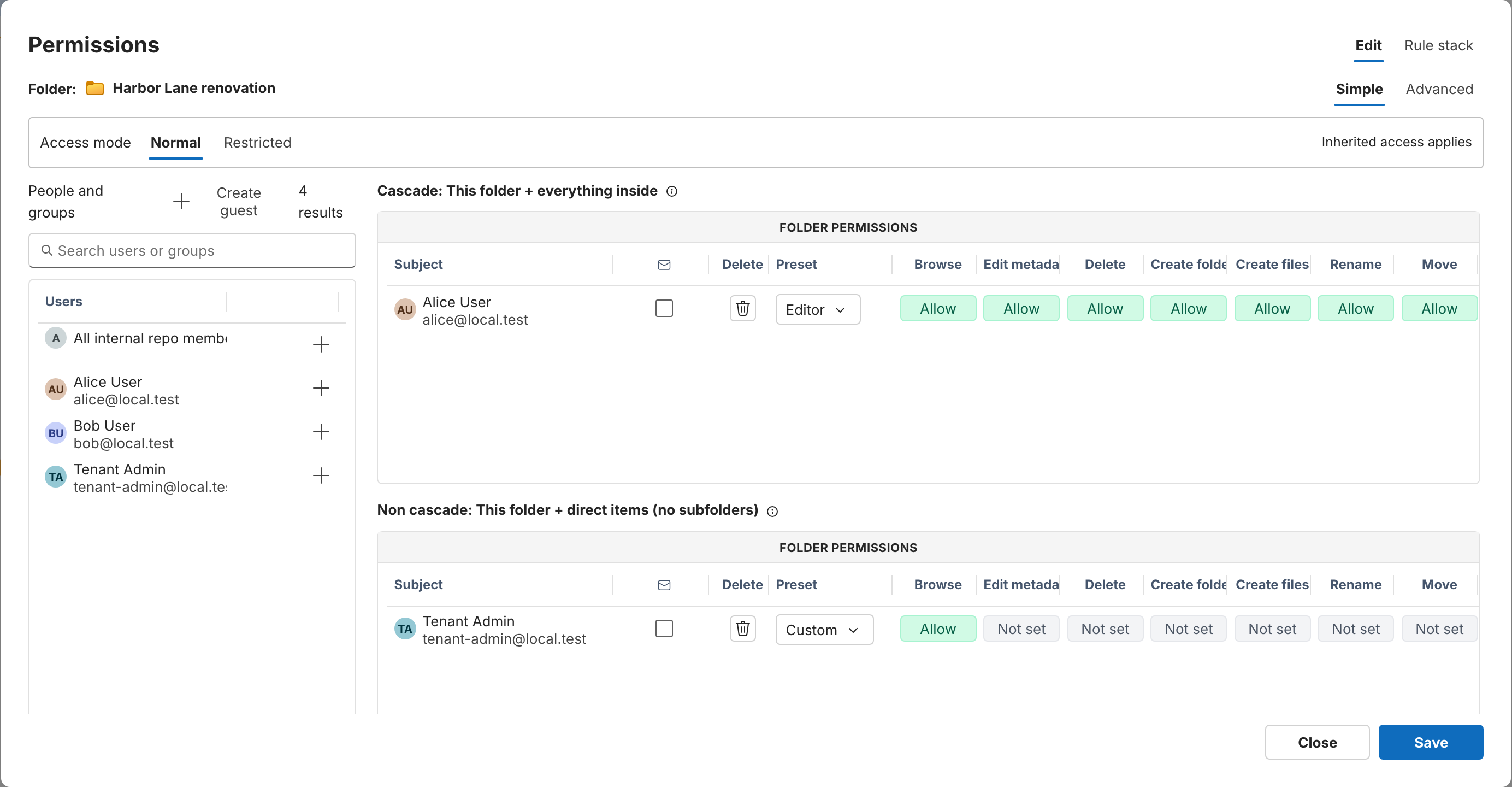
- Right-click the folder and select Share > Permissions.
- Under People and groups, search for a person or group. To add someone from outside your company, select Create guest.
- Select + next to them and choose how far their access reaches:
- Cascade: This folder + everything inside covers the folder, every folder below it, and every item in them.
- Non cascade: This folder + direct items (no subfolders) covers the folder and the items directly in it, but not its subfolders.
- Choose a Preset for them (see the table below).
- Select Save.
Folder presets
| Preset | Can |
|---|---|
| Viewer | Browse folders, and open and download items |
| Downloader | Everything Viewer can, and export folders |
| Basic editor | Everything Viewer can, and create files and folders, edit, rename, move, and delete |
| Editor | Everything Basic editor can, and export, federate, and share items |
| Manager | Everything Editor can, and change permissions |
For finer control, switch the dialog from Simple to Advanced. Advanced shows each permission separately for the folder, its child folders, and its child items, and lets you set each to Allow or Deny. Rule stack shows every rule that applies to the folder and where it comes from.
Share a file or other item
Files, task lists, tasks, calendars, and calendar events can be shared on their own. For a file or task list, that means without sharing its folder.
-
Right-click the item and select Share > Share.
-
Under People and groups, select Search users or groups, choose who to share with, and pick a role:
Role Can Viewer Open the item Editor Open, edit, and share the item Admin Everything Editor can, and manage who has access -
The person appears under Direct access. To change their role, choose another one next to their name, or select Remove.
Under Access, the dialog also shows how the item is reached:
- Inherited access: people with access to the parent folder can also access this item. This is the default.
- Restricted: only the people listed under Direct access can access the item, even if they can see its folder.
People with custom permissions show Custom access. To change those, select Advanced access.
Restrict a folder
To make a folder private inside a shared folder, open its Permissions dialog and change Access mode:
| Access mode | Who can access the folder |
|---|---|
| Normal | Everyone with access to the parent folder, plus anyone you add |
| Restricted | Only the people and groups you add here; inherited access is blocked |
A restricted folder that allows nobody is open only to repository admins. If the dialog shows Repo admin only instead of letting you choose, only a repository admin can change the folder’s access mode.
Notify people
When you add people to a folder, SynckHub can send them an Email notification with an optional message. You can also subscribe them to a Daily folder digest, an email summary of changes in the folder.
Check who has access
Select an item and open Permissions in the details panel. It lists the people and groups with rules on the item or its folders, and what each can do, such as Browse, Open / download, Write content, or Delete.
Groups
A group lets you share with a team at once. To see and manage groups, open Contacts, and under Directory, select Groups. When someone joins or leaves a group, their access changes everywhere the group is used.
Guests
Guests are people outside your company. A guest sees only the folders shared with them, and the files in them. Guests can’t open chats or task lists, and files can’t be shared with a guest on their own: share the folder instead. Guests appear as Pending guest until they accept their invitation.
Related
- Shared links for sharing with people who don’t sign in
- Roles and permissions reference
- Users and roles for company roles