Search
Search finds items in the current repository by their name or by the words inside them, including text recognized in scanned PDFs.
Search the repository
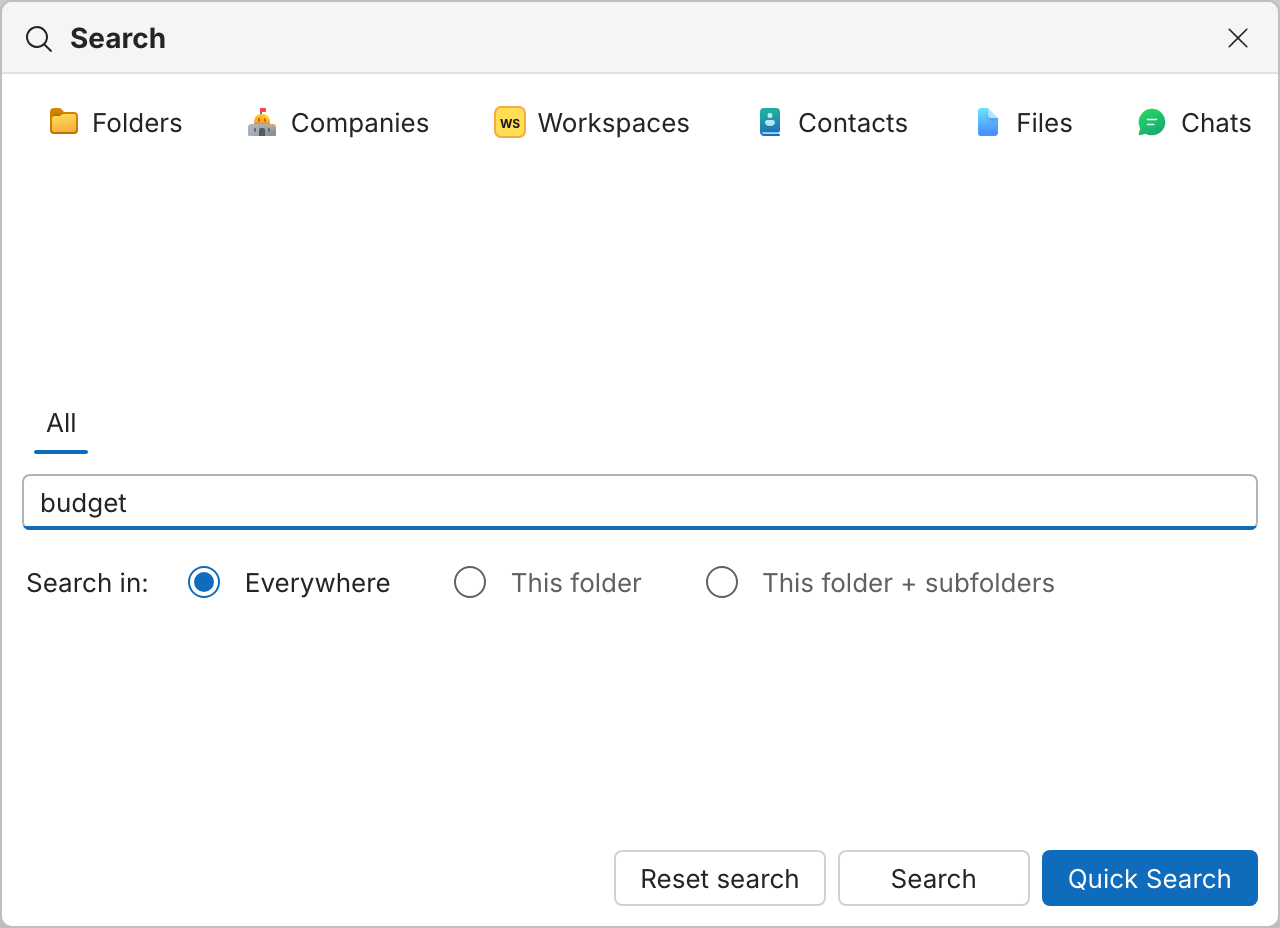
- Select Search in the header.
- Choose what to search, such as Folders, Files, Chats, Email, Notes, Tasks, Companies, Contacts, or your workspaces.
- If you opened search from a folder, choose where to look under Search in: Everywhere, This folder, or This folder + subfolders.
- Type what you’re looking for, then select Quick Search or Search:
- Quick Search shows the results in Explorer, under Quick Search in the sidebar.
- Search opens the Search app, where you can narrow the results by folder, File extension, Updated by, and Updated at.
Enter runs the highlighted button, and Shift+Enter runs the other one. You can also open the Search app from the app rail.
Name search and content search
Files can be searched two ways:
- Name matches file and folder names.
- Keywords match the text inside files.
Content results can be shown as Passages, the matching paragraphs with the words in context, or as Full file, one result per file. Right-click a passage to Copy passage, Copy link, or Open in explorer to see the file in its folder.
Note
Text recognized in scanned documents is marked Recognized text (OCR). OCR can misread names, numbers, and amounts, so check them against the original. To recognize text in a scanned PDF, right-click it and select Recognize text (OCR).
Search syntax
Content search (Keywords):
| Type | Finds |
|---|---|
apple orange |
Passages with either word |
apple OR orange |
The same as above |
apple AND orange |
Passages with both words |
"red apple" |
The exact phrase |
apple NOT orange or apple -orange |
Passages with apple but not orange |
apple AND (orange OR pear) |
apple together with orange or pear |
Name search: spaces and AND require every word in the name; OR matches
either word. Use "..." for an exact phrase.
Tip
If a content search returns too much, require words with AND or search for
an exact phrase. In content search, two words with only a space between them
match either word, not both.
Search connected email
When your mailbox is connected, Email can also search the mailbox at your email provider: select Search in and your account. Provider search follows your provider’s own rules, not the syntax above.
SynckHub Personal
SynckHub Personal searches on your device, because only your device can read your content. It searches file names and the text inside files, but not chat or email text, and has no OCR. On the mobile app, Personal searches file names only.