Version history
SynckHub keeps every saved state of every item. Nothing you save is overwritten: restoring an old revision adds a new one on top.
Two words are used for this history:
- A revision is created each time a file’s content or an item’s details change. Revisions are numbered: revision #1, #2, and so on.
- A version is a revision you chose to keep as a numbered, major or minor version. Versions mark the states that matter, like the draft you sent to a client.
See a file’s history
- Select the file.
- In the details panel, open Revisions & Versions.
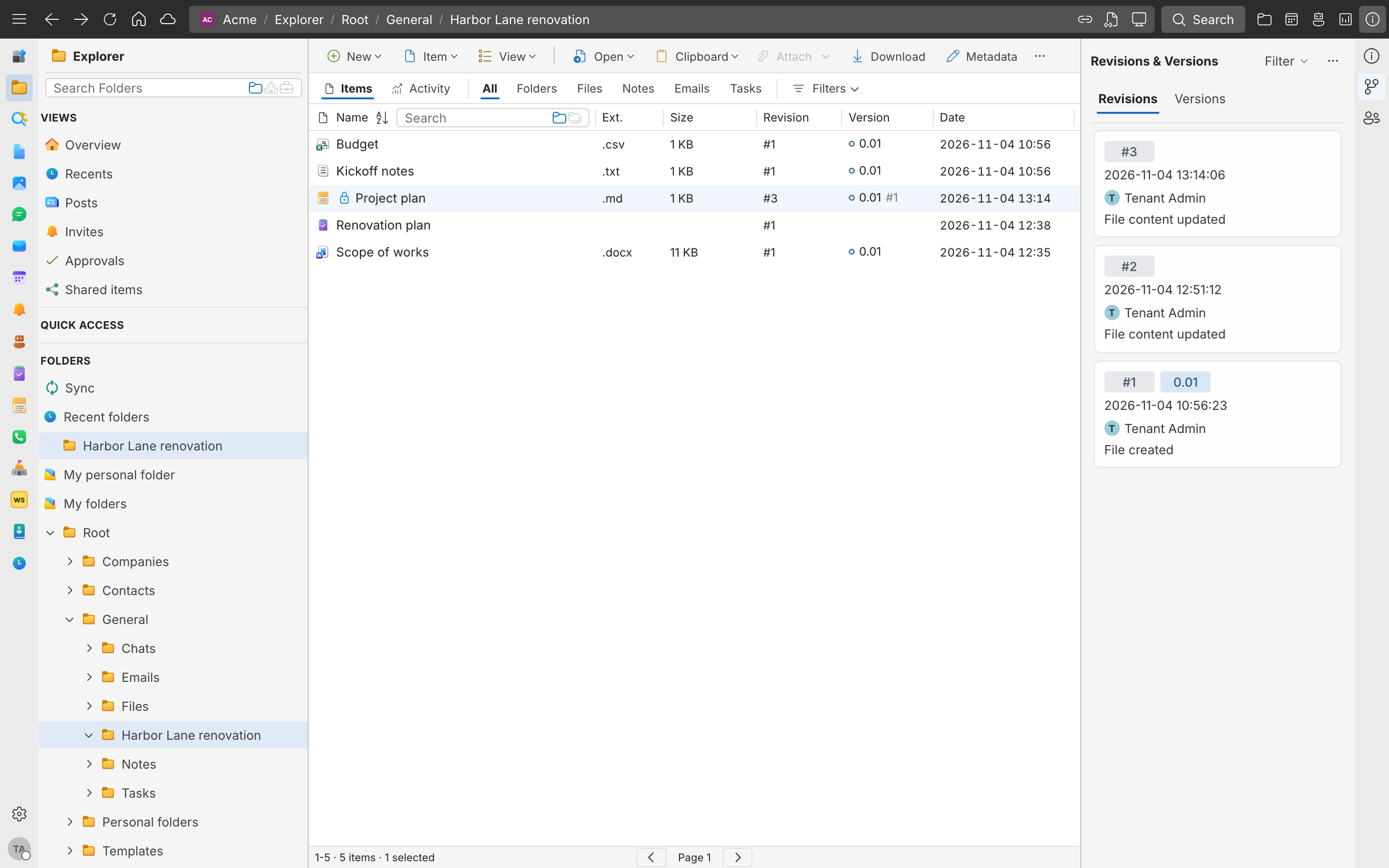
Revisions lists every revision, and Versions only the named versions.
The list shows each revision with who made it, when, and any message. Named versions show their number and type. current revision marks the content you see when you open the file.
For folders, emails, tasks, and other items that aren’t files, the tab is called Revisions and lists each change, including renames and moves.
Open or download an earlier revision
In Revisions & Versions, open the revision’s menu and select Open revision # or Download revision #. The file itself doesn’t change.
Restore an earlier revision
- In Revisions & Versions, open the menu of the revision you want back.
- Select Restore as current.
SynckHub creates a new revision with that content, for example “Created revision #8 from revision #5”. The revisions in between stay in the history.
Save a version
- In Revisions & Versions, open the revision’s menu.
- Select Save as version.
- Under Save as, choose Major version or Minor version, or Overwrite latest version to move the latest version’s number to this revision.
- Add an Optional message if it helps others understand this version, and save.
To change a version later, select Edit version details…, Promote to major, Demote to minor, or Delete version. Deleting a version removes its name, not the revision.
Note
You need edit access to the file to save or change versions.
Compare two versions
Select two revisions or versions, or select Compare with current on one of them. SynckHub Desktop opens both in Microsoft Word’s compare view.
Comparing needs SynckHub Desktop, connected to the same SynckHub server, and Word on your computer.
Delete a revision
If a revision should never have been saved, for example because it contains something sensitive, open its menu and delete it. Deleted revisions can’t be opened, downloaded, restored, compared, or saved as versions. The history still shows that the revision existed and was deleted.
You need delete access to the file. Only repository admins can recover a deleted revision.