Calendar
The calendar shows two kinds of calendar side by side:
- Your mailbox calendars: the Microsoft 365 or Google calendars of the accounts you connected in Settings > Connected accounts. See Email.
- SynckHub calendars: calendars that live in the repository, such as a team or office calendar. Everyone with access to a SynckHub calendar sees the same events.
Open Calendars in the sidebar. Choose Day, Work week, Week, Month, or Agenda, and select Today to return to the current date.
Create an event
- Select New event. To pick the time first, drag across it in the calendar, then select New event.
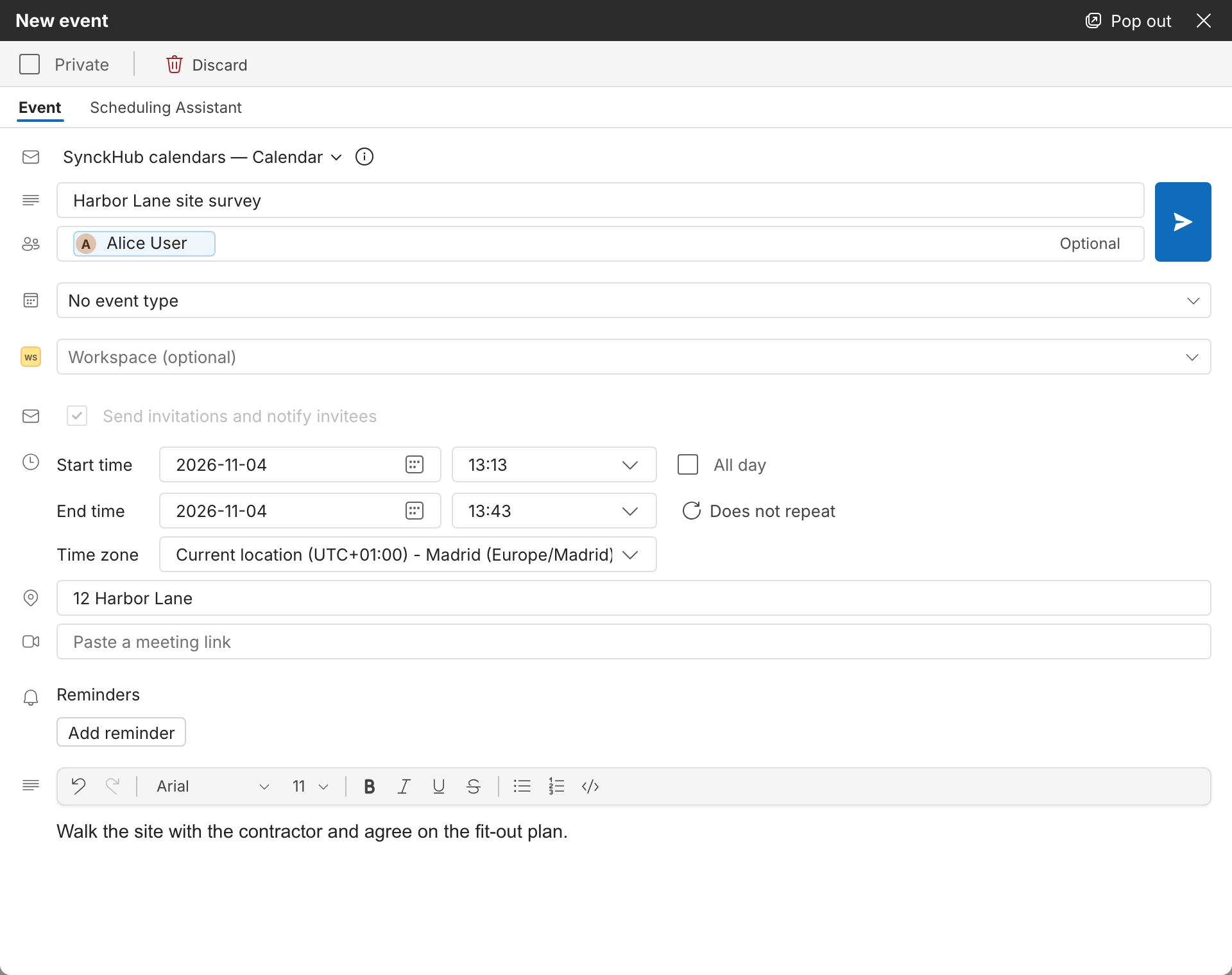
- Check the calendar at the top of the form, such as SynckHub calendars — Calendar, and enter a Title.
- In Add required people, type a name or email address and choose the person. Select Optional to add people who don’t have to attend.
- Set the Start time and End time, and optionally a location, a meeting link, Reminders, a description, or a workspace.
- Select the save button next to the title. Once you have invited people, it sends the invitations too.
People who use SynckHub are notified in SynckHub. Other addresses receive a calendar email.
To attach files, open the saved event on a SynckHub calendar and select Attach files.
Note
Invitees need access to the files you attach. When you save, SynckHub shares an attached file with them if you have permission to share it.
To find a time that suits everyone, open the Scheduling Assistant tab of the form. On a SynckHub calendar, select Find a time to see when the people in your company are free. Availability for people outside your company is unknown.
Create a SynckHub calendar
- Point to SynckHub calendars in the sidebar and select + (New repository calendar).
- Enter a Title, choose a color, and save.
A SynckHub calendar isn’t in any folder, so folder permissions don’t apply to it. Access comes from the repository and from the calendar’s own permissions. To limit one to the people you add directly, make it a Private calendar. To stop new events on a calendar without deleting it, select Archive.
To move events in or out, open a calendar’s menu and select Import calendar (.ics) or Export calendar (.ics). Imported events don’t send invitations.
Let someone schedule for you
To let an assistant or colleague create events and answer invitations for you, open the SynckHub calendars actions menu (…) and select Scheduling on my behalf. Choose the calendar, the person, and what they can do. They then see you under Calendars I manage for others, and can choose you as the Organizer of an event.
Show task due dates
Turn on My tasks under Calendars to see the due dates of the tasks assigned to you. See Tasks.
SynckHub Personal
SynckHub Personal shows connected Microsoft and Google calendars and its own calendars. Find a time, event types, delegation, and changes to a single occurrence of a recurring event are not available yet.