Files and folders
Files and folders make up a repository’s folder tree. A folder can also have records filed in it, such as saved emails and task lists. Each folder’s permissions decide who can see what is in it.
To add files and create folders, see Add your first files.
Open a file
Double-click a file to open it in its default viewer. To choose how to open it, right-click the file and point to Open. The commands depend on the file type:
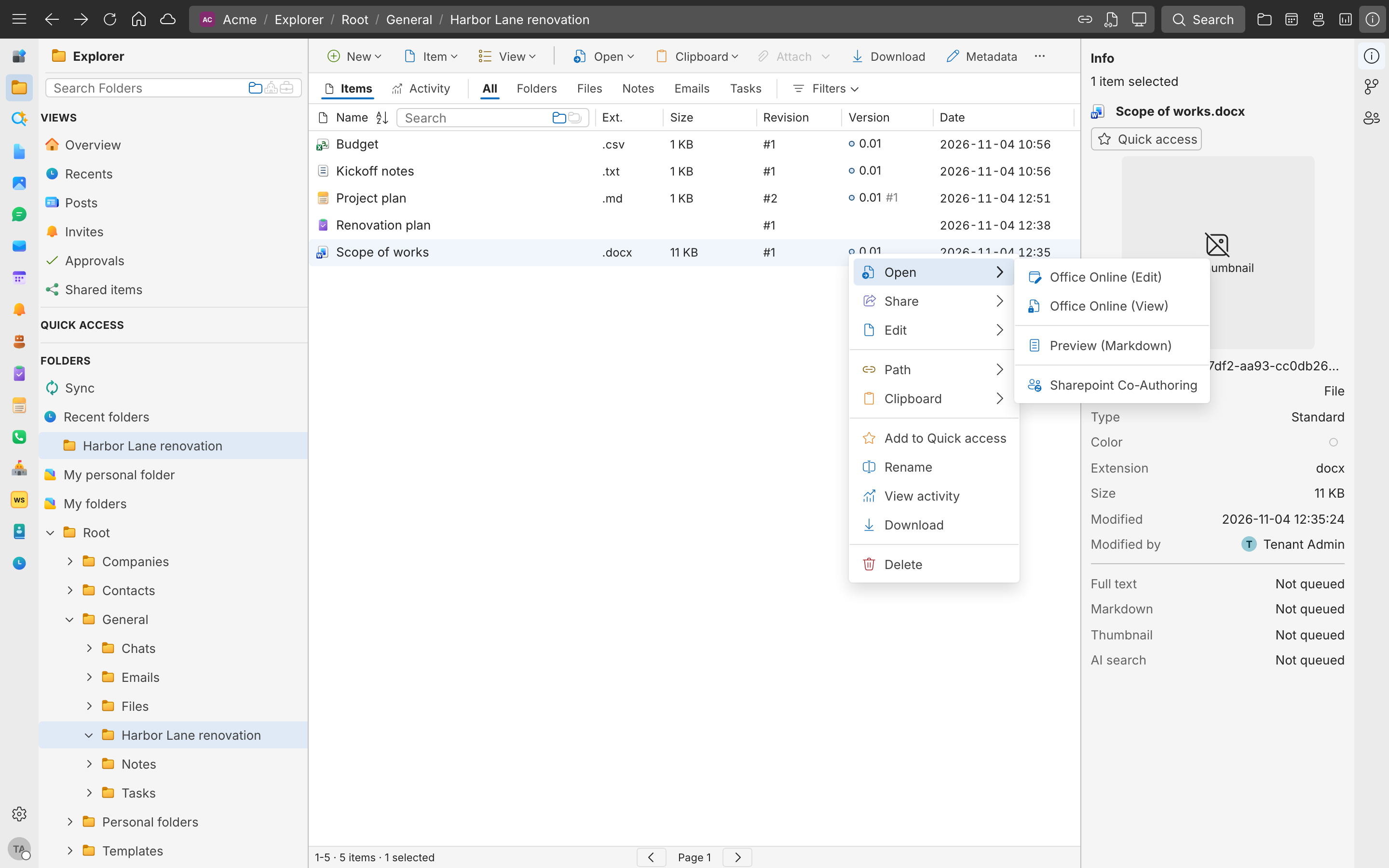
| Command | Opens the file |
|---|---|
| Office Online (Edit) or Office Online (View) | Word, Excel, and PowerPoint files in Office for the web. See Office files and coauthoring. |
| Preview (Markdown) | A read-only preview in SynckHub |
| PDF Viewer | PDF files, in SynckHub’s viewer |
| Open in Markdown Editor | Notes and .md files, in SynckHub’s editor. See Notes. |
| Edit or Read-only | In the application on your computer that normally opens the file. This needs SynckHub Desktop. |
| Open in Desktop | Images, videos, and PDFs, in the application on your computer, with SynckHub Desktop |
When you edit with Edit, SynckHub Desktop saves each change back as a new revision of the same file. See SynckHub Desktop.
Photos in a private Personal repository
The device that imports or replaces a supported photo prepares its preview. Once the revision has synced, another device can show the preview while the importing device is offline. Open photo details to see the available capture time, dimensions and location recorded with the file. Viewing those details uses no original-file download. Load full quality retrieves the original for the revision you opened.
Rename, move, copy, and duplicate
- To rename an item, right-click it and select Rename.
- To move an item, drag it onto a folder. Or right-click it, select Clipboard > Cut, then right-click the destination folder and select Clipboard > Paste, and confirm the move.
- To copy an item to another folder, use Clipboard > Copy and Clipboard > Paste the same way.
- To create a copy next to it, right-click it and select Edit > Duplicate.
A renamed or moved item is the same item. Its history and links come with it.
Copy a link to an item
Right-click the item and select Path, then:
- Copy Path (internal link) for a link that opens the item for anyone who has access to it.
- Copy Hyperlink (with name) for a link that pastes as the item’s name.
A link does not give anyone access. To let someone outside the repository open a file, create a shared link.
Lock a file
Lock a file while you work on it, so others can’t change it in the meantime. Right-click it and select Edit > Lock. Select Unlock when you’re done.
SynckHub Desktop locks a file automatically while you edit it with Edit, and unlocks it when you close it and the file is saved.
If a lock was left behind, someone with permission to remove it can select Force unlock.
Download and export
- Download saves the file to your computer.
- Select a folder, or several items, and select Download. Up to five files
are downloaded one by one; a folder, or a larger selection, comes as one
.zipfile. - Edit > Zip and Unzip create or expand a
.zipfile inside the repository. - Edit > Convert to PDF creates a PDF of an Office document and offers to save it into the same folder.
Delete and restore
Right-click an item and select Delete. It moves to the Trash, with its history.
To bring it back:
- In the sidebar, under More, open Trash.
- Right-click the item and select Restore. It returns to its original folder.
Color and metadata
Both are in the right-click Edit submenu.
- Color marks a folder or file with a color, so it stands out in lists.
- Metadata edits the item’s fields, such as tags or a client number, when your repository defines them.
SynckHub Personal
SynckHub Personal has no Lock, Office Online, or Recognize text (OCR). If two devices change the same file, the conflict appears under Sync, where you can keep the other change or save yours as a copy.