Your profile and settings
Note
This page describes SynckHub Business. SynckHub Personal shows fewer settings; for its security settings, see Personal encryption and recovery.
Your profile
Select your picture at the bottom of the app rail:
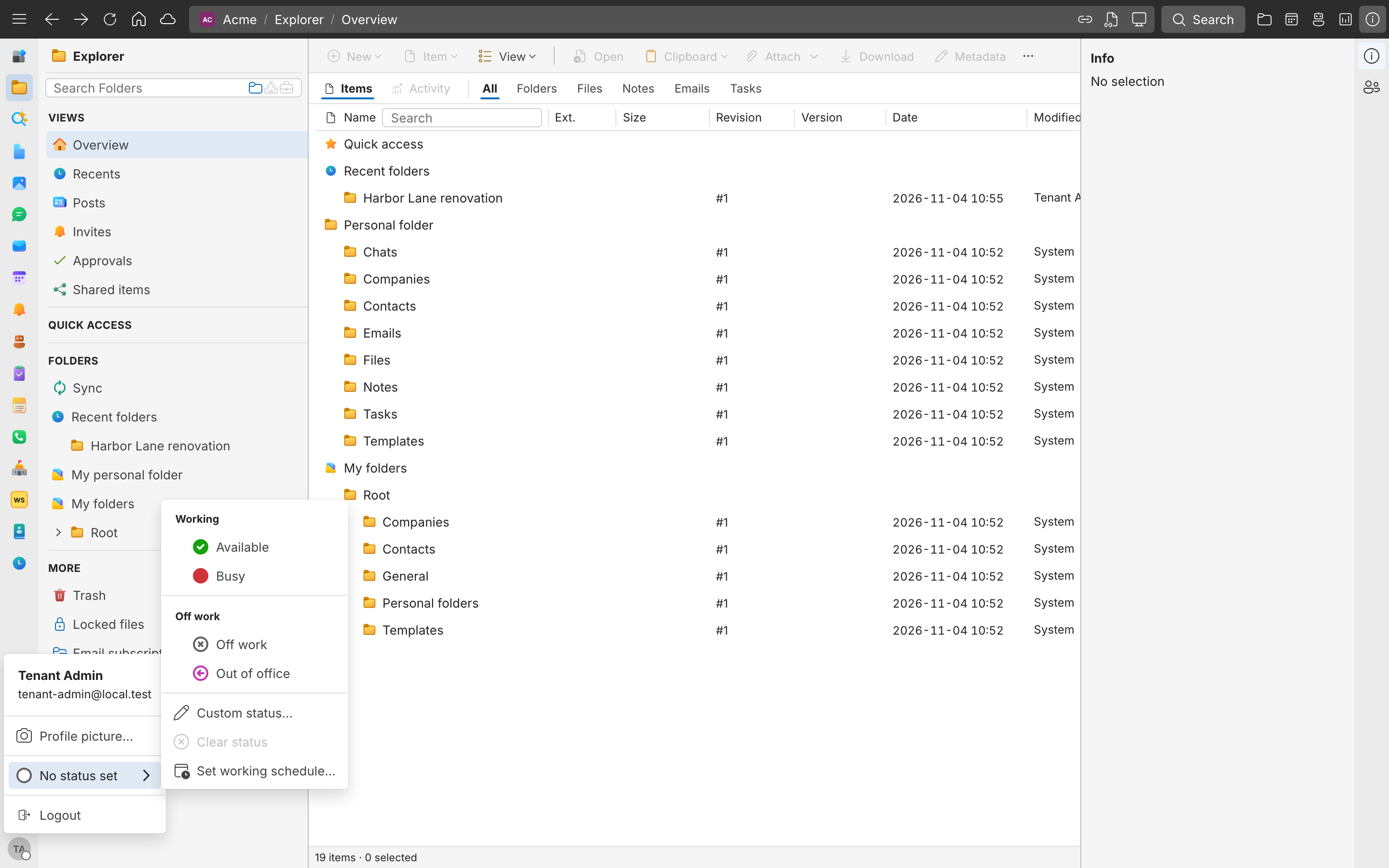
- Profile picture… > Choose picture sets the photo colleagues see next to your name.
- Your status tells colleagues whether you are Available, Busy, Working, Off work, or Out of office. Select Custom status… to write your own, or Clear status.
- Set working schedule… > Use a weekly schedule shows you as Working during the hours you set and Off work outside them. A status you choose yourself always wins over the schedule.
- Logout signs you out.
Settings
Select Settings, the gear at the bottom of the app rail:
| Page | What you set |
|---|---|
| General | Language, Number format, Date format, Time format, and Timezone, each of which can follow the repository’s default; whether to confirm before uploading or saving files; spelling dictionaries |
| Appearance | Theme (System, Light, or Dark), the application font, and the header color in light mode, for this browser |
| Notifications | Which mobile push notifications you get, such as Mail, Chat, Task activity, and Calendar reminders, for all your devices or for each one |
| Connected accounts | Your Microsoft or Google mailbox and calendar. See Email. |
| Signatures and email defaults. See Email. | |
| Calendar | Calendar options. See Calendar. |
| AI usage | How many AI tokens you used in the last 24 hours, 7 days, or 30 days |
| Security | Two-factor authentication |
| Shortcuts | The keyboard shortcuts, for your computer |
| Advanced | The repository you land in when you sign in, and a complete export of the repository for its owner |
| Troubleshooting | SynckHub Desktop logs, when support asks for them |
Turn on two-factor authentication
- Open Settings > Security.
- Turn on Require a 2FA code for my account.
From then on, SynckHub emails you a 6-digit code each time you sign in. Your company can also require two-factor authentication for everyone.
Change your password
- Select your picture at the bottom of the app rail, and select Logout.
- On the sign-in page, select Forgot your password?, enter your email, and select Send reset link.
- Open the email, select its link, and on Create a new password, enter the new password twice and select Change password.
Keyboard shortcuts
Shortcuts work when the action they trigger is available. Settings > Shortcuts lists them with your computer’s keys.
| Action | Windows | macOS |
|---|---|---|
| Search | Ctrl+K | Cmd+K |
| Open the address bar | Ctrl+L | Cmd+L |
| Go back | Backspace | Delete |
| Copy, cut, paste | Ctrl+C, Ctrl+X, Ctrl+V | Cmd+C, Cmd+X, Cmd+V |
| Rename | F2 | F2 |
| New folder | Alt+N | Option+N |
| Delete or restore | Delete | Fn+Delete |
| New email | Alt+C | Option+C |
| Mark email read or unread | Alt+Q | Option+Q |
| Archive email | Alt+A | Option+A |
| Print the open email | Ctrl+P | Cmd+P |