Notes
A note is a Markdown document that lives in a folder like any file. Use notes for meeting minutes, decisions, and context that belongs next to the work.
Create a note
- Open the folder the note belongs in.
- Select New > Note.
- Type a name and start writing.
To see notes from every folder, open Notes in the sidebar.
Edit a note
To edit a note, right-click it and select Open >
Open in Markdown Editor. The editor opens in its own window. The toolbar
formats text, and you can also type Markdown directly, such as # for a
heading or - for a list. Select Save when you’re done.
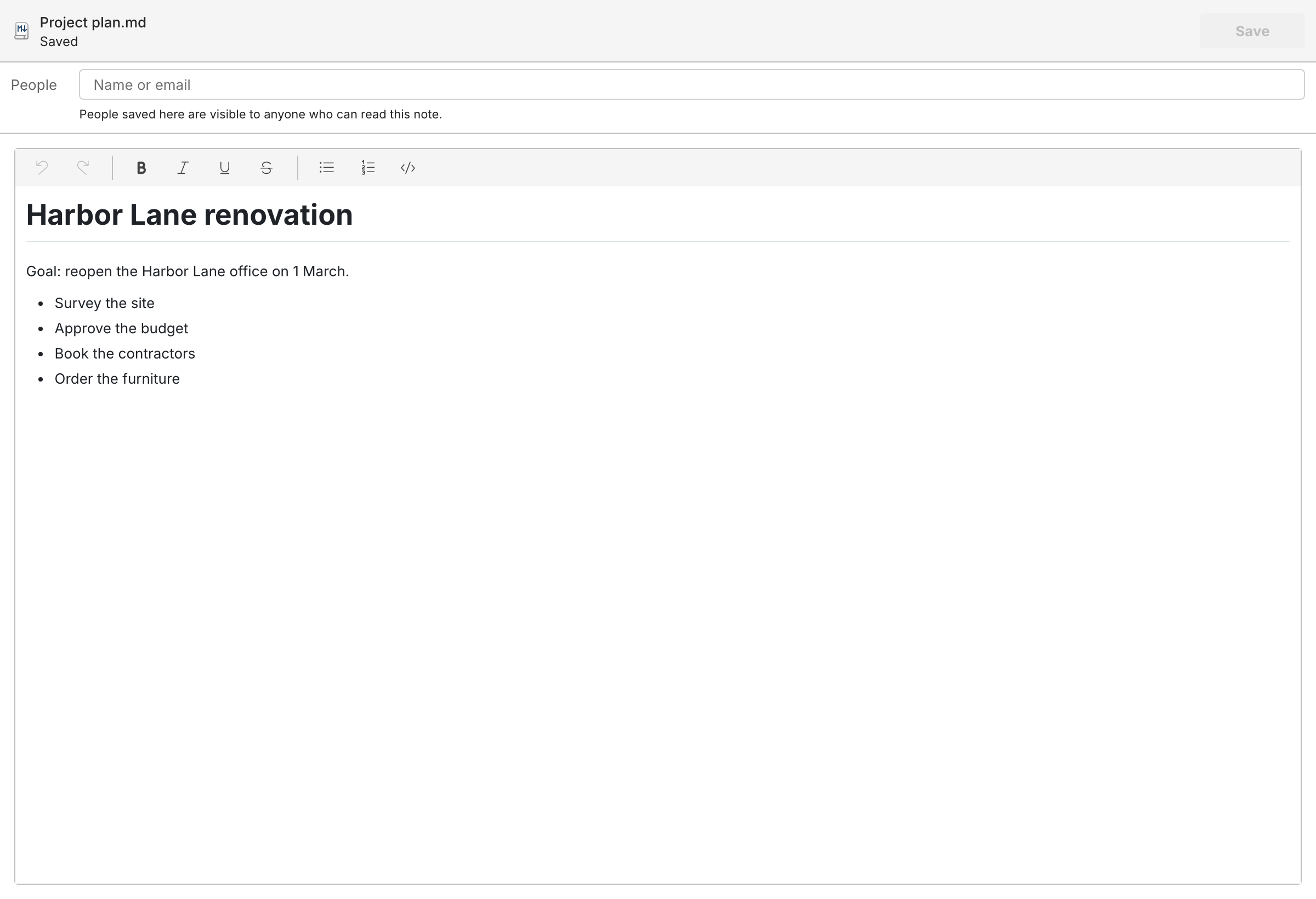
Each save becomes a revision, so you can see and restore earlier text. See Version history.
Write a note together
To edit a note at the same time as others, right-click it and select Open > Open in Notes Coauthoring (Yjs). Everyone who opens it this way sees each other’s changes as they type.
Note
Live coauthoring is part of SynckHub Business. It isn’t available in SynckHub Personal.
Markdown files
Any .md file can be opened as a note: right-click it and select
Open > Open in Markdown Editor, or Open > Preview (Markdown) to
read it formatted.