Chats
Chats keep conversations in the same repository as the work. A room is a conversation for a team or topic. A DM is a direct message with one person.
A chat isn’t in any folder. Only its participants can see it, and guests can’t open chats.
Start a chat
- Open the Chats app.
- Select New. In New chat, choose Room or DM.
- For a room, enter a Chat name. Under Add person, type a name or email address, choose a role, and select Add for each person. For a DM, type the person’s name or email address, or select Search contacts.
To show only rooms or only direct messages, open the Type: All filter and choose #Rooms or DMs.
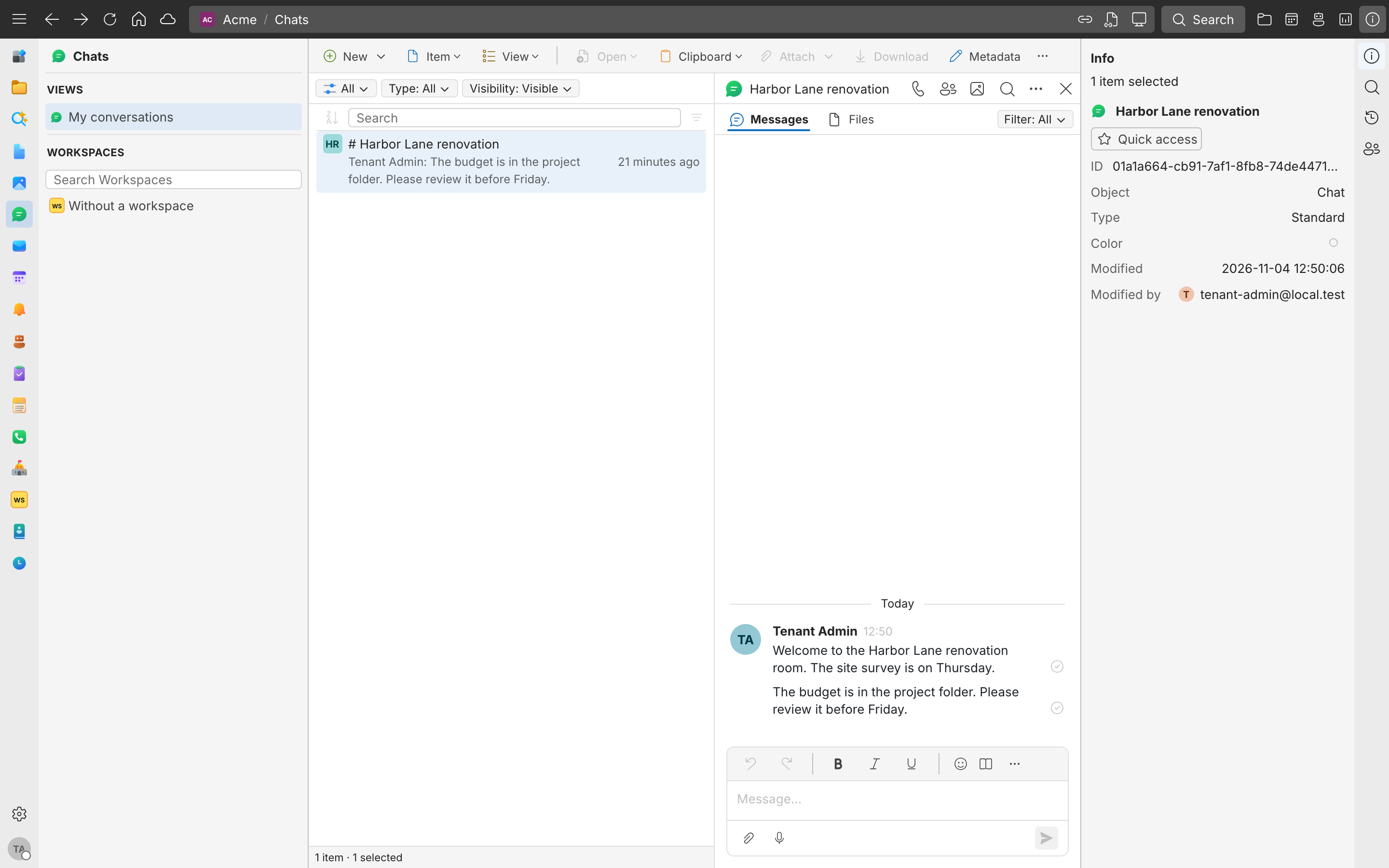
Send messages
Type in the message box and press Enter. You can:
- Attach files to a message. People in the chat can download them.
- Select Use as reply on a message to reply to it. Your reply shows what it is replying to.
- Select Add reaction to react with an emoji.
- Select Edit message… or Delete on your own messages.
- Select New task on a message to turn it into a task, so a request in a chat doesn’t get lost. See Tasks.
Send and view photos in Personal
When you send a supported photo, your device prepares a small preview and uploads it along with the encrypted original. The recipient can open the photo once the attachment has finished sending, even if your device goes offline. On mobile, Saved means the message has reached the service. Read appears when a recipient reads it. A new contact may first need to accept your chat invitation. For an embedded photo sent from Business to Personal, the sending Business server prepares the preview.
Open a photo to see its preview. Choose Load full quality to see fine detail or work with the original. To download the full photo whenever you open one, turn on Automatically load full quality when opening photos on that device. Older attachments can open at full quality even if they have no preview.
Manage who is in a room
Open the room’s Participants to see who is in it. Each participant has a role:
| Role | Can |
|---|---|
| Owner | Manage the room and its participants |
| Member | Read and send messages |
| Viewer | Read messages |
Invitations you sent are listed under Invites, where you can Revoke them. Adding All internal repo members opens the room to everyone in your company who is in the repository. To leave, select Leave room.