Shared links
Note
This page applies to SynckHub Business. You need permission to manage access on the file or folder.
A shared link lets anyone who has it open a file or browse a folder, without a SynckHub account. People with the link can view and download, but can’t change anything.
Warning
Anyone who gets the link can use it, including people it was forwarded to. For confidential content, add a password and an expiry, or share with named people instead. See Sharing and permissions.
Share a folder with a link
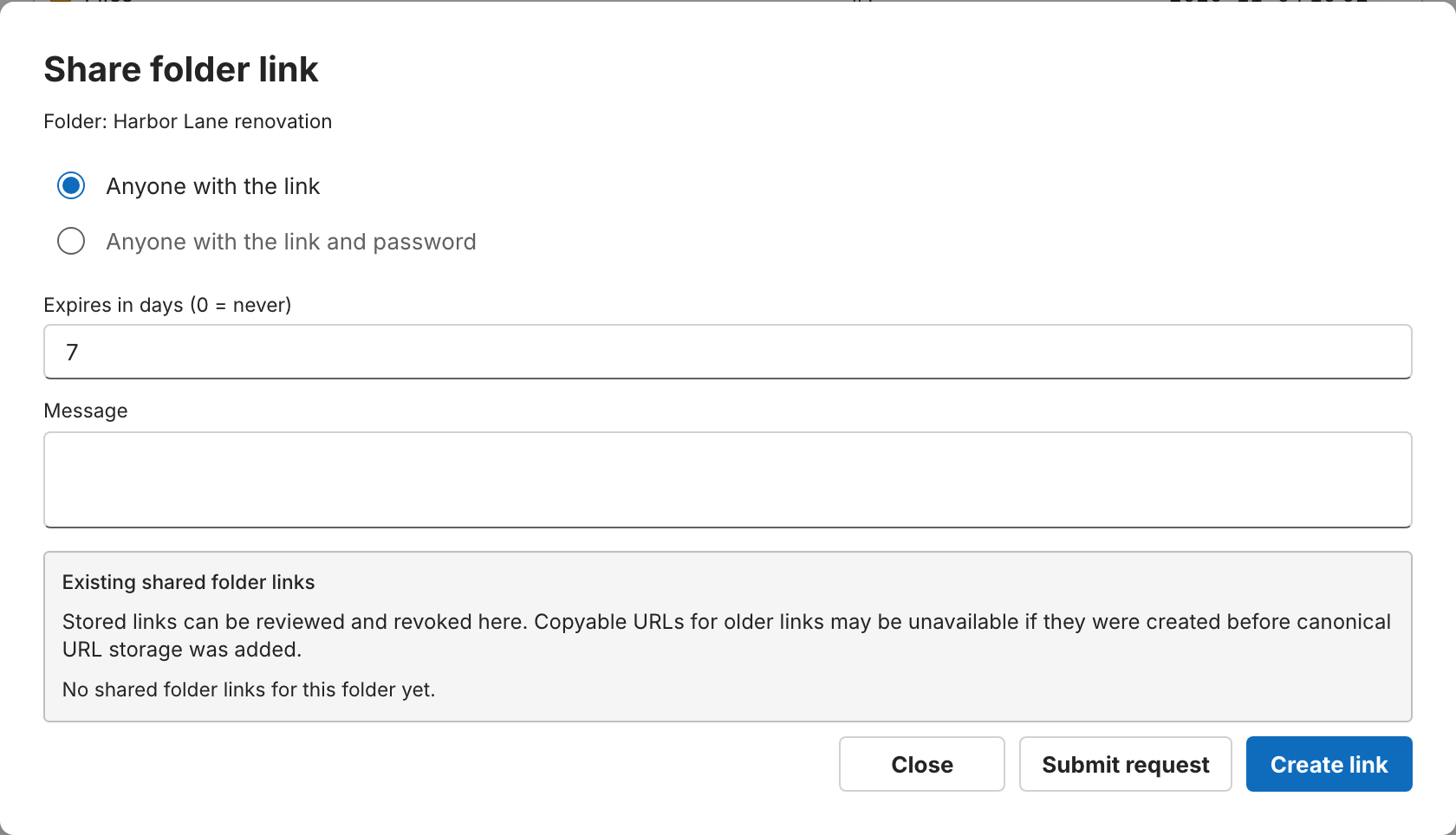
- Right-click the folder and select Share > Share link.
- In Share folder link, choose Anyone with the link, or Anyone with the link and password and enter a password.
- Set Expires in days (0 = never), which starts at 7, and optionally a Message for the people who open the link.
- Select Create link. The link appears under Existing shared folder links; select Copy next to it.
People who open the link can browse the folder and its subfolders, open files,
and download files or the whole folder as a .zip file.
Share a file with a link
- Right-click the file and select Share > Share link.
- In Share file, choose Anyone with the link, or Anyone with the link and password and enter a password of 12 or more characters.
- Select Create link, then Copy link.
To share several files with one link, select them all (up to 100) and select Share > Share link. The link keeps working if the files are renamed or moved within the repository.
Important
SynckHub can’t show a link’s password again. Send it to people separately from the link.
Revoke a link
Open the same dialog for the file or folder and select Revoke. For a folder, select it next to the link under Existing shared folder links. The link stops working immediately, for everyone.
To see every folder link in the repository, open Shared folder links under More in the sidebar. It appears when you can manage the repository’s root folder.
Ask for approval
For a folder link, you can select Submit request instead of Create link. The link is created only after the request is approved in Approvals.
Let colleagues join a folder by link
Share > Grant folder access by link… creates a Folder auto-join link. Unlike a shared link, it works only for people who sign in, and gives each of them permissions on the folder under their own account. Choose Cascade or Non-cascade, the permissions it grants, and an expiration of up to 99 days, then select Create.