Tasks
Tasks live in task lists. When you create a task list in a folder, it is filed there, next to the project’s files. People with access to the folder can see it, unless you restrict it.
Create a task list
- Open the folder the work belongs to.
- Select New > Task list and name it.
To see tasks across lists, open the Tasks app:
- Updates: unread changes to your tasks.
- Upcoming: what is due, across task lists.
- Assigned: tasks assigned to you, or by you.
- My tasks: tasks you created outside any list.
Add a task
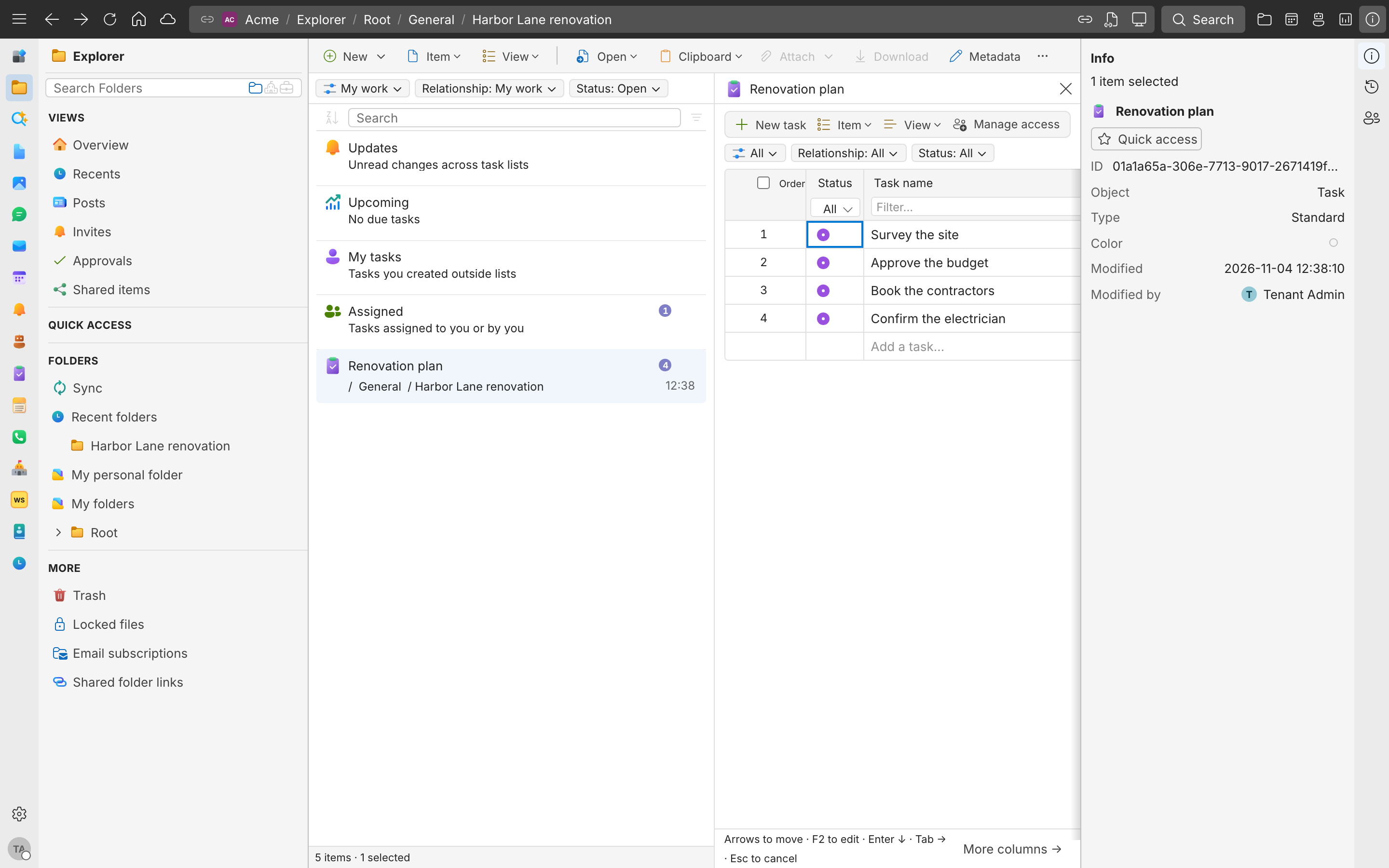
To open a task list, right-click it and select Open > Open. Then type in the Add a task… row and press Enter, or select New task to add a row.
To create a task from a folder, select New > Task and fill in the New task form:
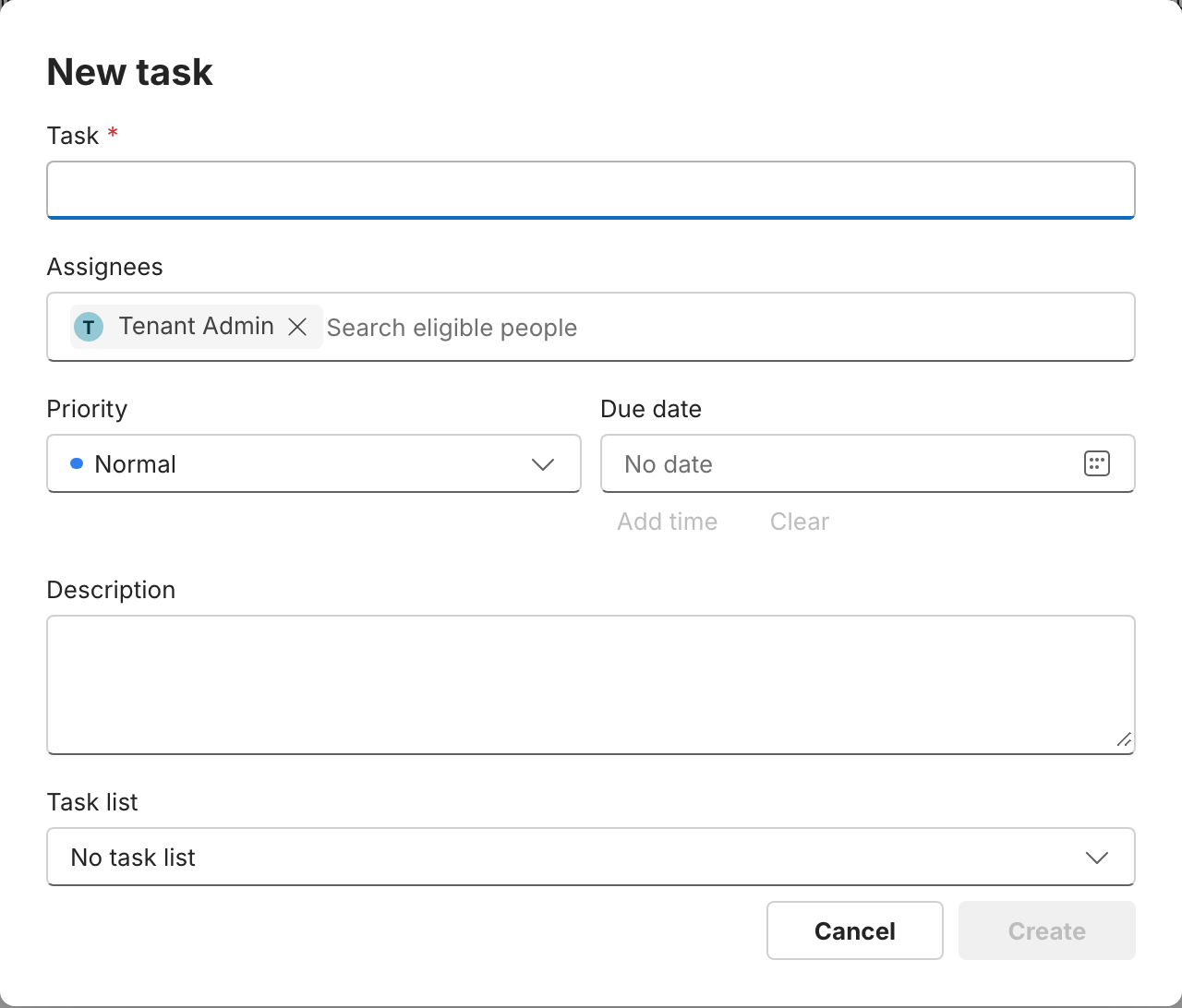
| Field | Use it for |
|---|---|
| Task | What needs doing |
| Assignees | Who does it. You are added by default. You can assign people or groups. |
| Priority | Urgent, High, Normal, or Low |
| Due date | When it is due. Select Add time for a time of day. |
| Description | Details |
| Task list | The list to add it to, or No task list |
Select Create. In a task’s details, you can also set the due date to Today, Tomorrow, This week, or Next week.
Track progress
Each task has a Status: To do, In progress, Blocked, Follow-up, Done, or Canceled. Select Mark completed when it is done, and Reopen task if it needs more work.
- Subtasks: select Add child task to break a task down. If a task still has open subtasks when you mark it completed, SynckHub asks whether to complete only the parent. To delete a task, first move or delete its child tasks.
- Followers: select Follow to get updates on a task you are not assigned to.
- Comments: open the task and use Activity and comments to discuss it. Every change to the task is listed there too.
- Filters: filter by assignee, status, or due date, such as Overdue or Next 7 days.
Work in the grid
A task list works like a spreadsheet. Use the arrow keys to move, F2 to edit a cell, Enter to go down, and Tab to go right. Drag a task, or use Alt with the arrow keys, to reorder or indent it.
To track more about each task, select Add column and choose a type: Text, Number, Date, Checkbox, or Select, a list of options you define.
Share a task list
Right-click the task list and select Share > Share, or open it and select Manage access. You can also share a single task. See Sharing and permissions.
Removing someone from a task list also removes them from the tasks they were assigned to or following in it. Access they have through the folder isn’t changed.
Note
Guests can’t open task lists, even when they can see the folder.