Get started as a new team member
Your company keeps its work in SynckHub: files, email, tasks, chats, and calendars, all in one place, with the history of every change. This guide gets you through your first day in about 20 minutes. Each step links to a full guide if you want more.
Tip
Onboarding someone? Send them the link to this page together with their invitation.
Note
This page applies to SynckHub Business. If you use SynckHub on your own, start with SynckHub Personal.
1. Accept your invitation
- Open the email SynckHub sent you and select its link.
- Choose a password of at least 8 characters and enter it twice. The page you
see depends on how you were added:
- On Accept invite, select Accept invite. SynckHub signs you in. If you already have a SynckHub account, sign in before you accept, and the invitation is added to that account.
- On Create a new password, select Change password. Then sign in at synckhub.com/login with your work email and the new password.
- If SynckHub lists your repositories, select Open next to your company’s.
From now on, sign in at synckhub.com/login.
To protect your account, open Settings > Security and turn on Require a 2FA code for my account. SynckHub then emails you a code each time you sign in.
2. Set up your profile
Select your picture at the bottom of the app rail:
- Profile picture… > Choose picture adds a photo, so colleagues recognize you.
- Your status, which starts as No status set, shows colleagues whether you are Available, Busy, Working, Off work, or Out of office.
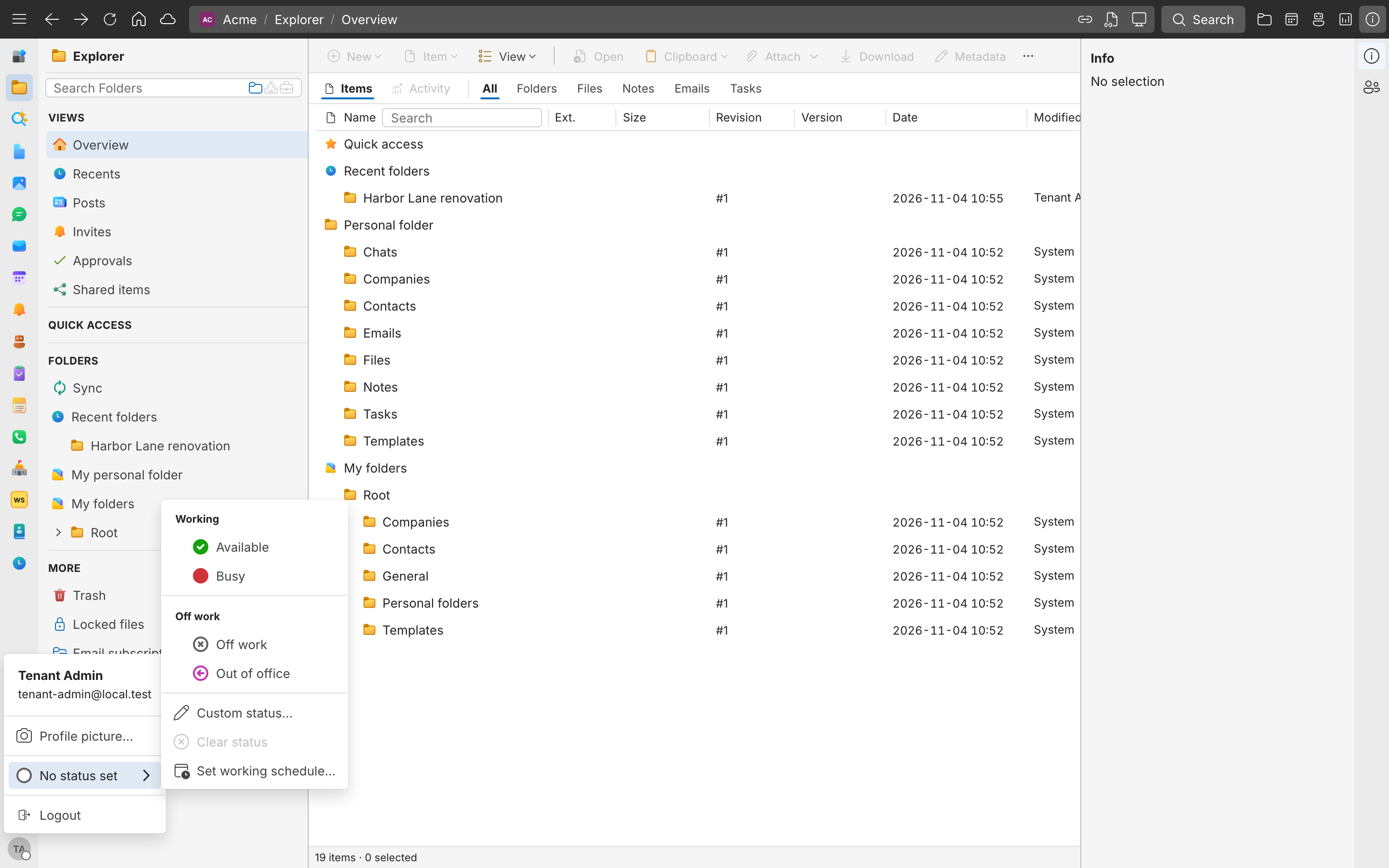
In Settings > General, check your Language and Timezone. See Your profile and settings.
3. Learn your way around
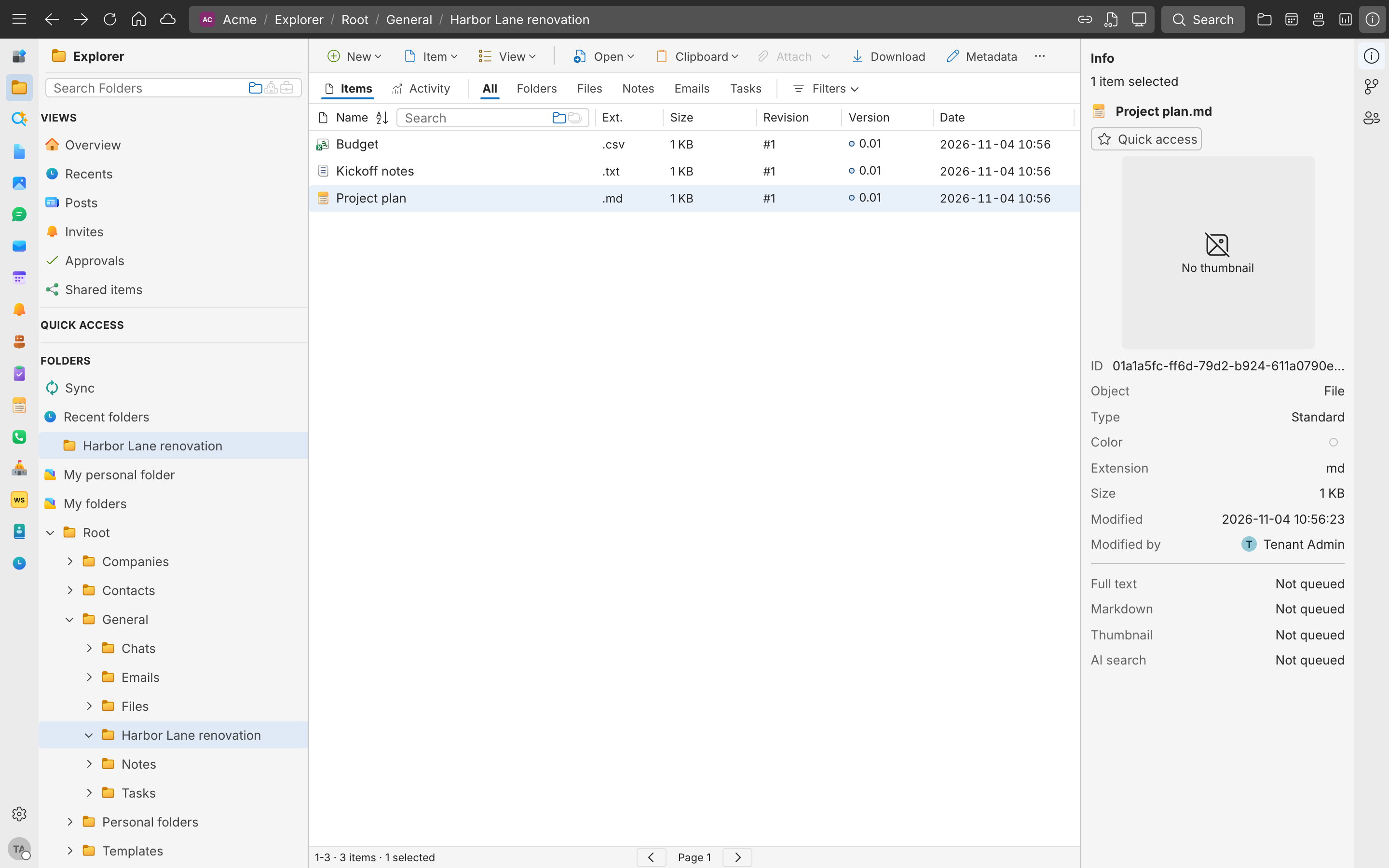
- The app rail on the left switches between apps: Explorer for folders and files, Email, Chats, Tasks, Calendar, and more.
- The sidebar next to it navigates the app you opened.
- The details panel on the right shows the selected item’s information, history, and who has access to it.
- Search is at the top of the window.
4. Find your team’s work
Your company’s folders are in Explorer, in the sidebar under My folders > Root. You see the folders you have access to. If you can’t find a folder a colleague mentions, ask them to share it with you.
- Shared items lists what people shared with you directly.
- Recents lists what changed most recently.
- To keep a folder or file one click away, right-click it and select Add to Quick access. It appears under Quick access in the sidebar.
- To find something by name or by the words inside it, select Search at the top of the window. See Search.
5. Open and edit files
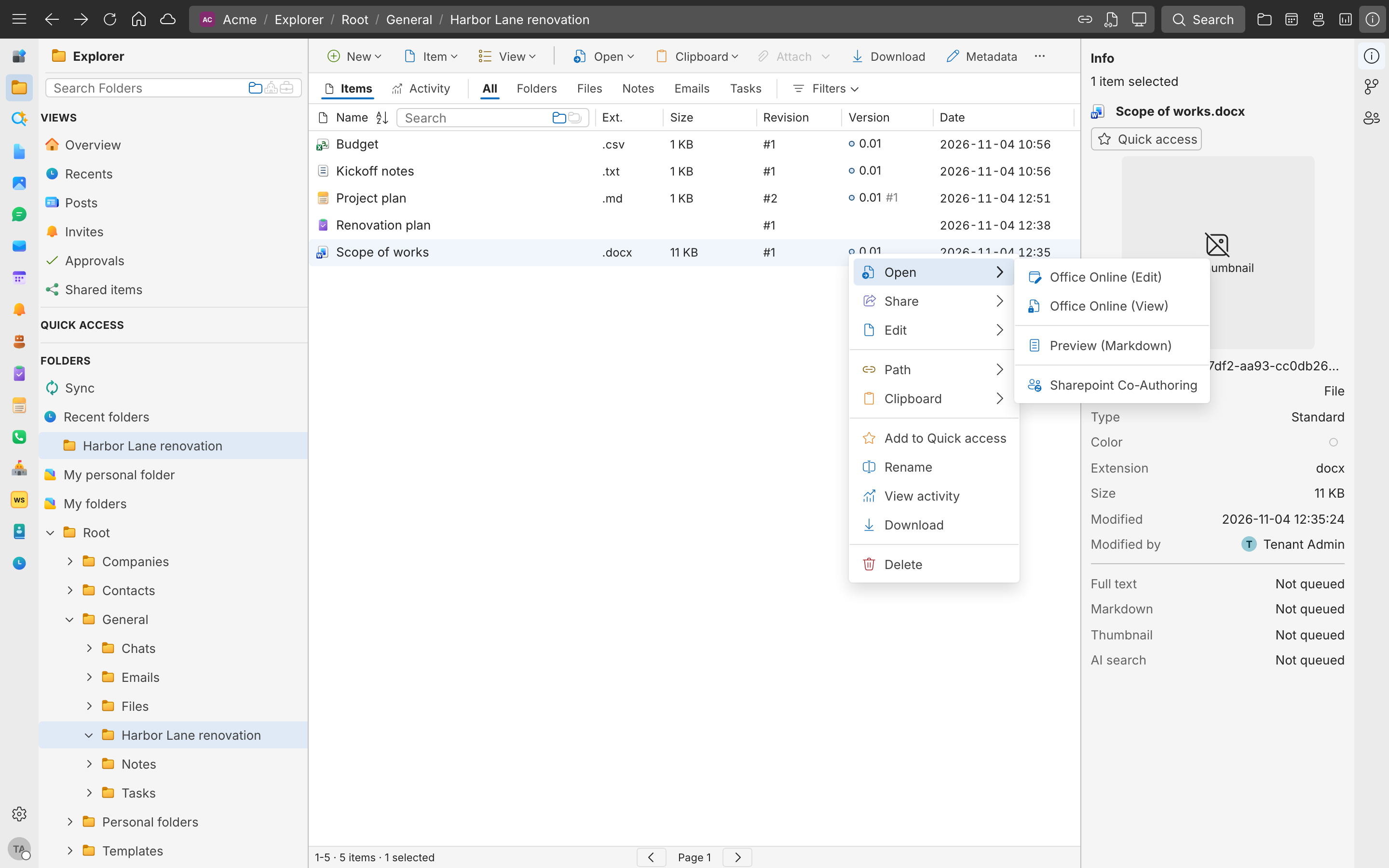
Double-click a file to open it. To edit, right-click the file, point to Open, and select:
- Office Online (Edit) for Word, Excel, and PowerPoint files in the browser, where colleagues can edit with you at the same time.
- Edit to use the application on your computer. This needs SynckHub Desktop.
Every save is kept as a revision, so you can’t lose work by mistake. To get an earlier version back, select the file and open Revisions & Versions in the details panel. See Version history.
6. Add files
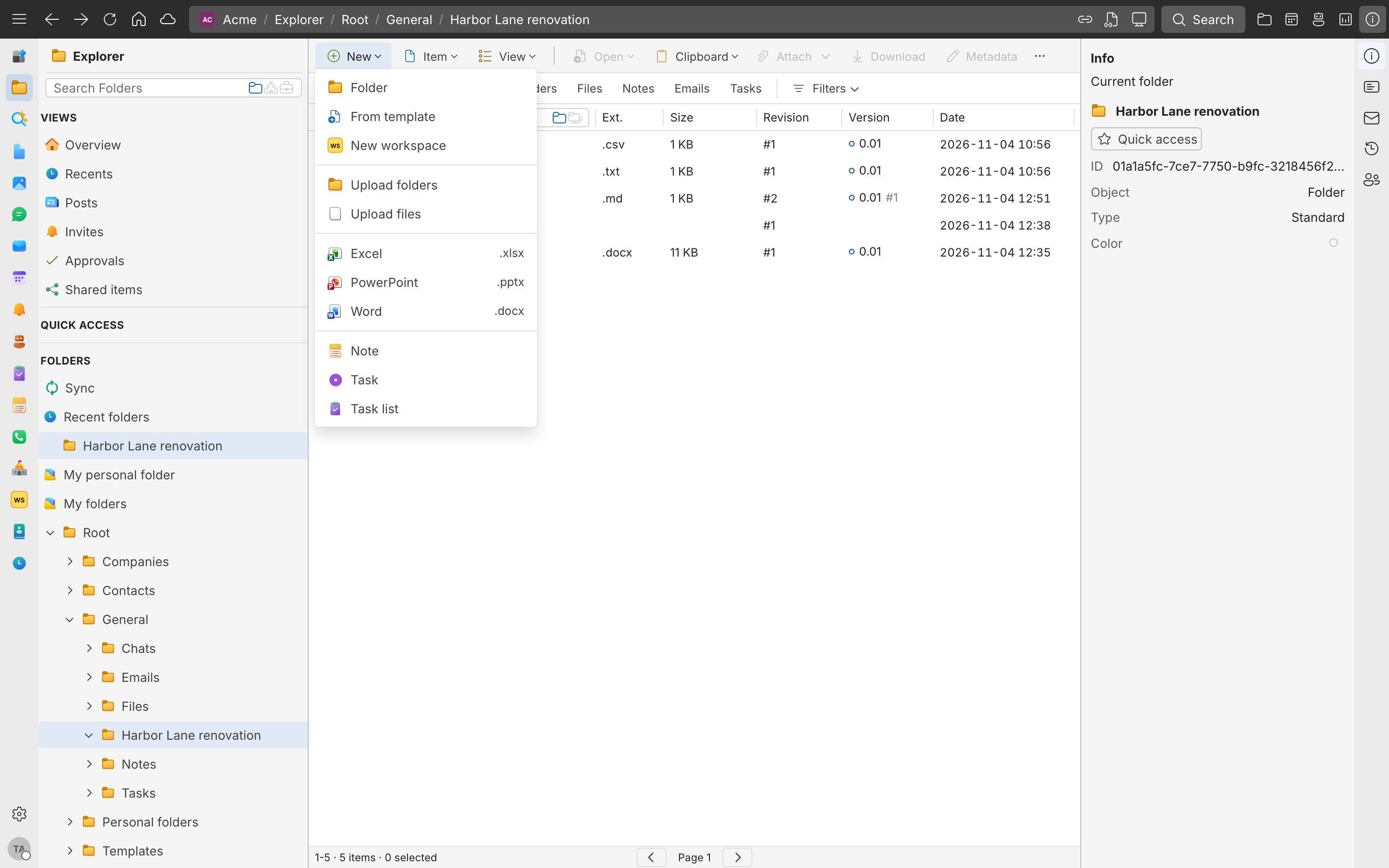
Open the folder the work belongs to, then select New > Upload files, or drag files from your computer onto the folder. New also creates Word, Excel, and PowerPoint documents, notes, and task lists. See Add your first files.
Important
A folder’s permissions decide who can see what is in it. Save your work in the folder where it belongs, and everyone who works there can find it.
7. Connect your email and calendar
- Open Settings > Connected accounts.
- Select Connect Microsoft or Connect Google, and sign in with your work account.
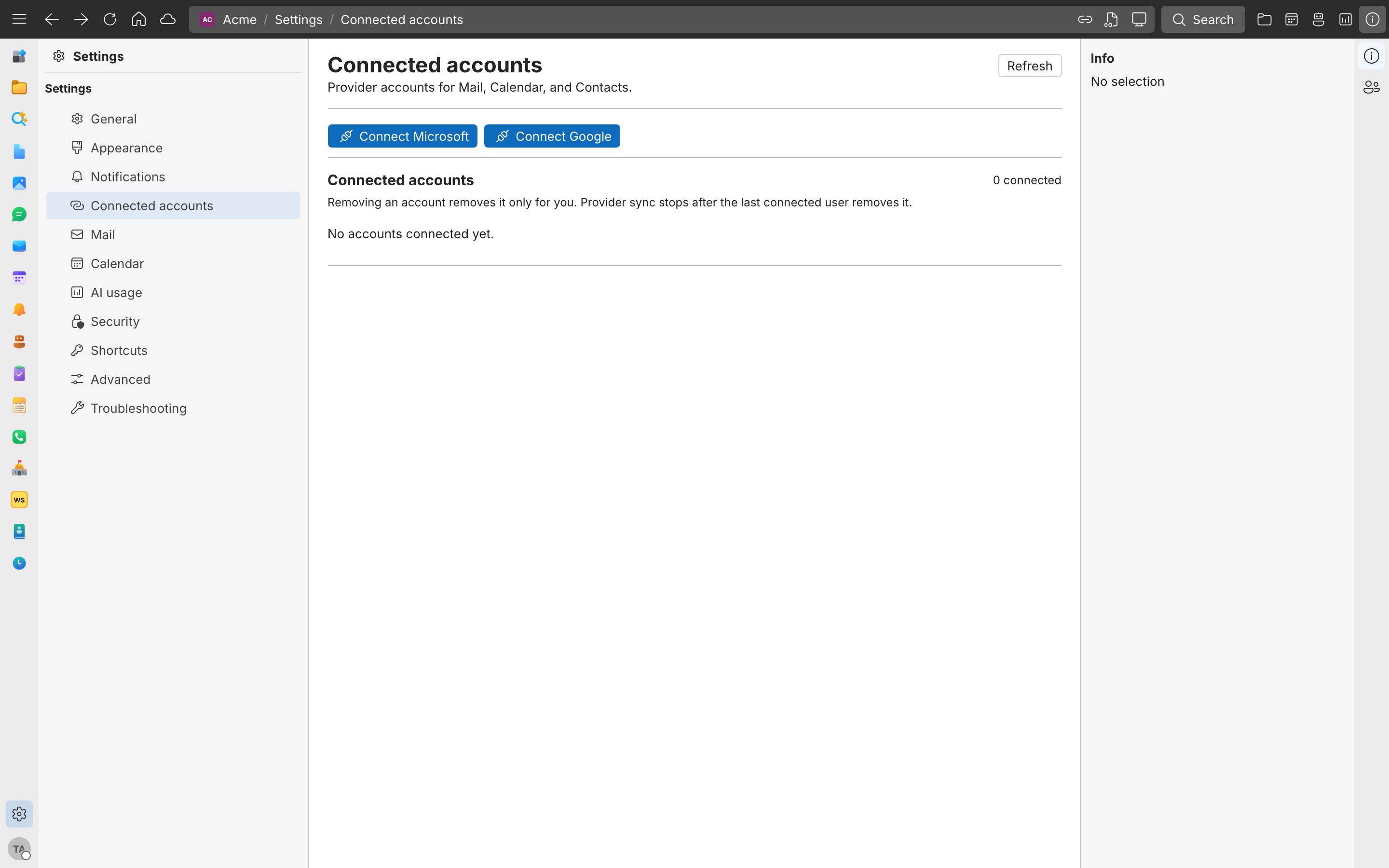
Your mail appears in Email, and your calendar in Calendar. To file an email with the work it belongs to, select the email, then select Save to SynckHub… and choose the folder. Your team then finds it there, next to the files. See Email.
If your company gave you a SynckHub email address, it is already in Email.
8. Work with your team
- Chats: open Chats, select New, then DM, and type a colleague’s name to send them a message. See Chats.
- Tasks: open Tasks and select Assigned to see the tasks assigned to you. See Tasks.
- Sharing: to give someone access to a folder, right-click it and select Share > Permissions. If you can’t, ask the person who manages the folder. See Sharing and permissions.
9. Install the apps
- SynckHub Desktop for macOS and Windows opens files in your own applications and checks out folders to your computer.
- The SynckHub Business mobile app for iOS and Android brings files, email, chats, calendar, and tasks to your phone. To choose which notifications it sends, open Settings > Notifications. See Mobile apps.
Good to know
- Nothing is overwritten. Every change is kept, and deleted items go to the Trash, under More in the Explorer sidebar, where you can restore them.
- Access follows folders. Whoever can open a folder can see what you save in it, unless the folder or item is restricted.
- A link doesn’t give access. Copying an item’s link lets only people who already have access open it.
Next steps
- Take a tour of the app
- Use SynckHub for every feature in depth