Take a tour of the app
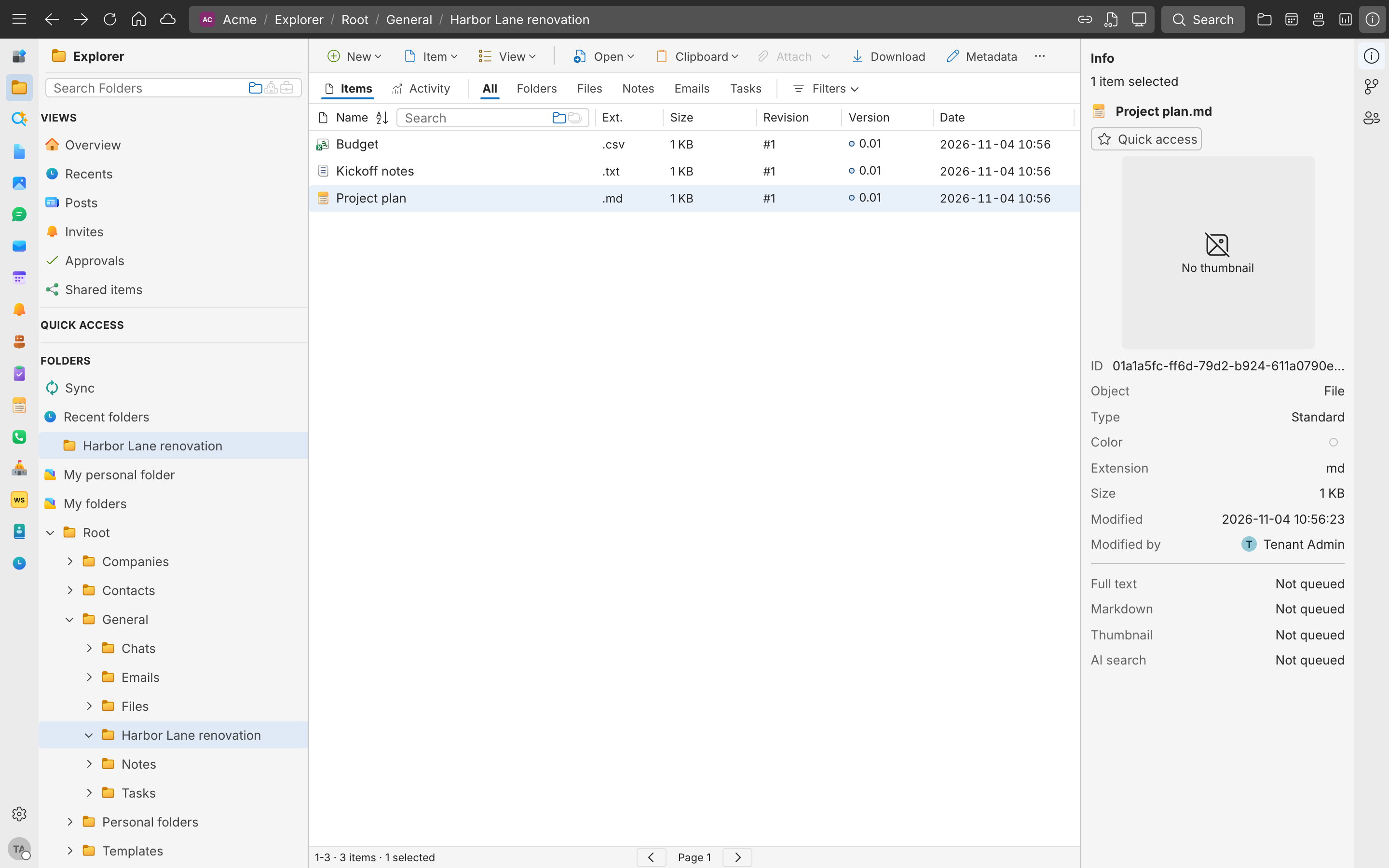
The web app, SynckHub Desktop, and SynckHub Personal share one layout. This page names its parts so the rest of the documentation can refer to them.
The window
| Part | Where | What it does |
|---|---|---|
| App rail | Left edge | Switches between apps, such as Explorer, Email, and Chats |
| App menu and breadcrumb | Top left | Shows the company and repository you are in, and switches between them |
| Search box | In the header | Searches the current repository. See Search. |
| Sidebar | Next to the app rail | Navigation for the app you opened |
| Toolbar | Above the content | Commands for what you are looking at, such as New and Share |
| Content | Center | The folder, list, document, or conversation you opened |
| Details panel | Right | Information, history, and permissions for the selected item |
| Settings | Gear at the bottom of the app rail | Your preferences, connected accounts, and security |
The app rail
Each icon on the app rail opens one app, with its own sidebar: Explorer, Search, Files, Photos, Chats, Email, Calendar, Agenda, AI Agents, Tasks, Notes, Calls, Companies, Workspaces, Contacts, and Time. Apps at the top lists them all. Drag an icon to reorder the rail.
The Explorer sidebar
Explorer is where SynckHub opens. Its sidebar has four groups.
Views:
| View | Shows |
|---|---|
| Overview | Your quick access items, recent folders, personal folder, and folders, in one list |
| Recents | The most recently changed items, newest first |
| Posts | Posts published in the repository |
| Invites | Invitations waiting for your answer |
| Approvals | Approval requests waiting for you, and the requests you sent |
| Shared items | Items other people shared with you |
Quick access holds the folders and items you pinned.
Folders:
- Sync lists your file checkouts, uploads, exports, folder checkouts, and synced repositories. Managing them needs SynckHub Desktop.
- Recent folders lists the folders you opened last.
- My personal folder opens your own folder under Personal folders.
- My folders is the repository’s folder tree, starting at Root.
More holds the Trash, Locked files, Email subscriptions, and, if you manage the repository, Shared folder links.
In SynckHub Personal, Explorer has no Overview, and Folders shows your folders directly.
Note
To see all items of one kind, such as every chat or every saved email, open its app on the app rail. Some items, such as files and saved emails, are in folders. Others, such as chats and calendars, aren’t in any folder and have their own access. See Repositories and items.
The details panel
Select an item to see it in the details panel. Its tabs depend on the item:
- Info: what the item is, its size, and when and by whom it was last changed.
- Details (folders): how many files, emails, task lists, and chats the folder holds, and whether its access is inherited or restricted.
- Mail rules (folders): rules that make SynckHub suggest this folder, or stop suggesting it, when you save email from a sender, a domain, or a conversation.
- Revisions & Versions (files) or Revisions (other items): its history. See Version history.
- Permissions: who has access, and why.
Right-click menus
Right-click any item for its commands. For a folder, they are Open, New, Share, Edit, Path, Clipboard, Add to Quick access, Rename, View activity, Download, and Delete. Commands with more choices, such as Share, open a submenu.
Switch between repositories
- Open the app menu at the top left.
- Select Cloud repositories. If you use a desktop app, select Local repositories for repositories stored on this computer.
- Select Open next to the repository you want.
The list shows Your repositories and Company and shared repositories, including repositories you joined as a guest. Invitations to new repositories appear under Invitations, where you can select Accept invitation or Decline.