Invite your team
SynckHub Business
People join a company repository in one of two ways:
- Members belong to your company. They get an account in your company and access to the repositories you choose.
- Guests are people outside your company, such as clients. They see only the folders shared with them, and can’t open chats or task lists.
Add a colleague
Note
Company owners and security admins can add people. An owner can also let other members do it. See Users and roles.
- On the app rail, open Contacts.
- Under Directory, select Users.
- In the toolbar, select Create user.
- Enter the person’s Email, First name, and Last name, and select Create user.
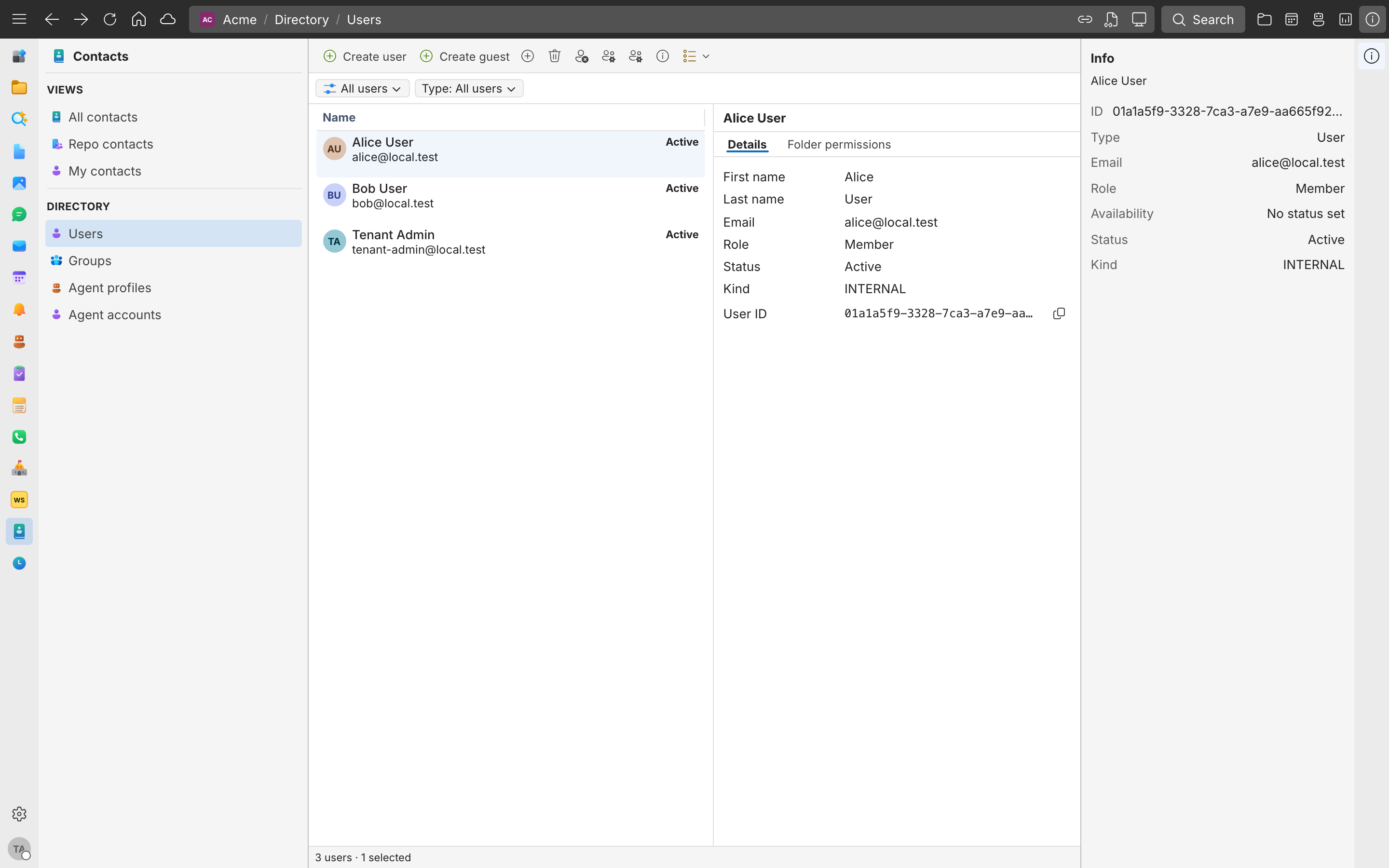
The person becomes a company member with access to this repository. If they are new to SynckHub, they get an email to set their password. If they already have an account, it is reused. To add someone who already has a SynckHub account, select Add existing user instead.
Send new colleagues Get started as a new team member. It walks them through their first day in SynckHub.
To choose the person’s company role, or give them access to several repositories at once, invite them from the admin center. See Users and roles.
Invite a guest
Any internal member of a repository can invite a guest.
- On the app rail, open Contacts, and under Directory, select Users.
- Select Create guest and enter the guest’s email address and name.
- Share the folders the guest needs. See Sharing and permissions.
You can also invite a guest while you share a folder: in the folder’s Permissions dialog, select Create guest.
Tip
Give guests access to one folder for their work, such as a client folder, rather than to the whole repository.
Share your first folder
- Right-click the folder and select Share > Permissions.
- Under People and groups, search for the people or groups who need it and add them.
- Choose a preset for each, such as Viewer or Editor, and select Save.
- If SynckHub offers an Email notification for the people you added, add an optional message and select Send, or close it.
See Sharing and permissions for roles and the difference between sharing a folder and sharing one item.
SynckHub Personal
A SynckHub Personal repository has one owner: you. It isn’t designed for a team, but you can invite guests to one of your cloud repositories, for example to let a family member see some documents. Each guest gets the repository’s keys on their own device, so they can decrypt it.
Important
The first repository you created with your account holds your account’s identity, and can’t be shared. Local repositories can’t be shared either. Create a separate cloud repository for what you want to share.
- Open the app menu at the top left and select Cloud repositories.
- Next to the repository, open Repository actions and select Invite user.
- Enter the guest’s Email and choose a Role:
- Member: can read and change the repository.
- Read only: can read it, but not change it.
- Select Invite.
The guest needs SynckHub Personal and an account. The invitation appears in their Cloud repositories list, where they select Accept invitation on the device they use with that account.
To remove a guest, open Repository actions > Repository access and select Remove. SynckHub Personal then changes the repository’s keys, so the guest can’t read anything added afterwards. It can’t take back what they already saw.